The Interface
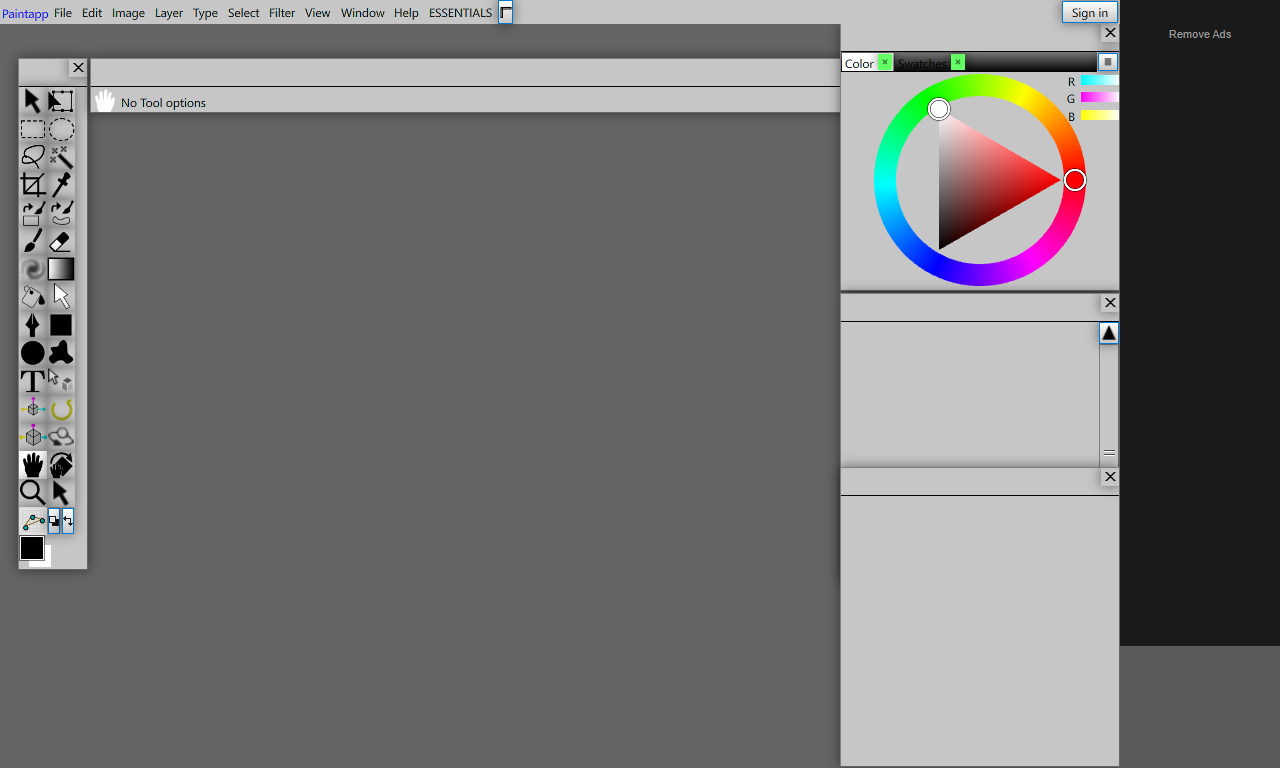
Main workspace with toolbox (left), canvas (center), and panels (right).
Menu Bar
The top row. Contains all application commands organised into File, Edit, Image, Layer, Type, Select, Filter, View, Window, and Help menus.
Tool Options Bar
Appears just below the menu bar. Shows context-sensitive options for the currently active tool.
Toolbox
The narrow floating panel on the left. Holds all painting, selection, and editing tools arranged in two columns. Click a tool to activate it; some tools share a slot — hold the icon to reveal the flyout.
Canvas Area
The large gray workspace in the center. Open documents appear as tabs or floating windows here. Use Space+drag to pan and Ctrl+scroll to zoom.
Panels
Dockable panels on the right (Color, Swatches, Layers, etc.). Open any panel from the Window menu. Panels can be resized, collapsed, and rearranged.
Color Panel
Shows a color wheel with an inner triangle for saturation/value. Drag the outer ring to set hue; drag the triangle for saturation and brightness. RGB sliders shown at the right.
Working with Documents
Each open document lives in a tab inside the canvas area. Click a tab to bring it to the front. Documents can also be undocked into floating windows by dragging the tab away from the tab bar.
Workspaces
A workspace is a saved arrangement of panels. Use Window → Arrange to manage workspaces. The ESSENTIALS button on the right side of the menu bar restores the default workspace layout.